Backup, Audit Trail & System Settings
Goal: Manage system backups, review the audit trail, and configure system-wide settings.
These features are available only to Super Admins and cover the operational and compliance aspects of running VoTech.
Backup & Restore
Creating a Backup
- Click Backup & Restore in the sidebar under Admin
- Click Create Backup
- VoTech creates a snapshot of:
- All student records
- All attendance data
- All class and term configurations
- User accounts and permissions
- Notification history
- The backup appears in the backup list with a timestamp
Backups apply Tier 2 redaction: ACE data and case note content are replaced with [REDACTED — Tier 2] in backup files. If you use a backup as a data export, sensitive fields will have gaps. This is by design for compliance — the original data remains in the live database.
Restoring from Backup
- Open the Backup & Restore page
- Find the backup you want to restore from
- Click Restore
- Confirm the restore action
Backup restore files must be under 100 MB. If the restore file exceeds this limit, the upload will be rejected.
Restoring from a backup overwrites current data with the backup's data. Any changes made after the backup was created will be lost. Use with extreme caution and only when necessary.
Create a backup before making major changes — like a bulk student import, a term transition, or any system configuration change. This gives you a rollback point.
Audit Trail
The audit trail is an immutable log of everything that happens in VoTech. It records:
| Event Type | What's Logged |
|---|---|
| Data access | Who viewed which student's record, when |
| Data changes | Who changed what field, old value → new value, when |
| Tier 1-2 access | Every time SSN, ACE, or case notes are accessed |
| Authentication | Sign-in attempts (successful and failed) |
| Role changes | When a user's role or permissions are modified |
| Exports | When reports are exported as CSV |
| Administrative | Backups created, system settings changed |
Reviewing the Audit Trail
- Click Backup & Restore in the sidebar (audit trail is in this section)
- Use filters to narrow results:
- User — filter by who performed the action
- Action type — data change, access, authentication, etc.
- Date range — when the action occurred
- Student — filter by which student's data was involved
- Click on any entry for full details
The audit trail is append-only — entries cannot be edited or deleted, even by Super Admins. This ensures accountability and compliance with FERPA requirements.
Recent Backups
The backup page shows the 3 most recent backups with timestamps. VoTech stores up to 10 backups total. You can restore from any backup in the history without uploading a file — just click Restore on the desired entry.
Data Retention & Purge
VoTech runs a weekly purge cron that automatically removes stale data:
| Data Type | Retention |
|---|---|
| Notification log | 90 days |
| Scheduled notifications | 90 days after send |
| Interest form submissions | 90 days after review |
| Inbound SMS messages | 180 days |
| Inactive students | 7 years (anonymized, not deleted) |
Invites
Permissions Matrix
Available to: Super Admin only
The Permissions page at Admin → Permissions shows a read-only matrix of default permissions by role. It displays 17 permission categories across all 7 roles, with check marks (granted) or X marks (denied) for each combination.
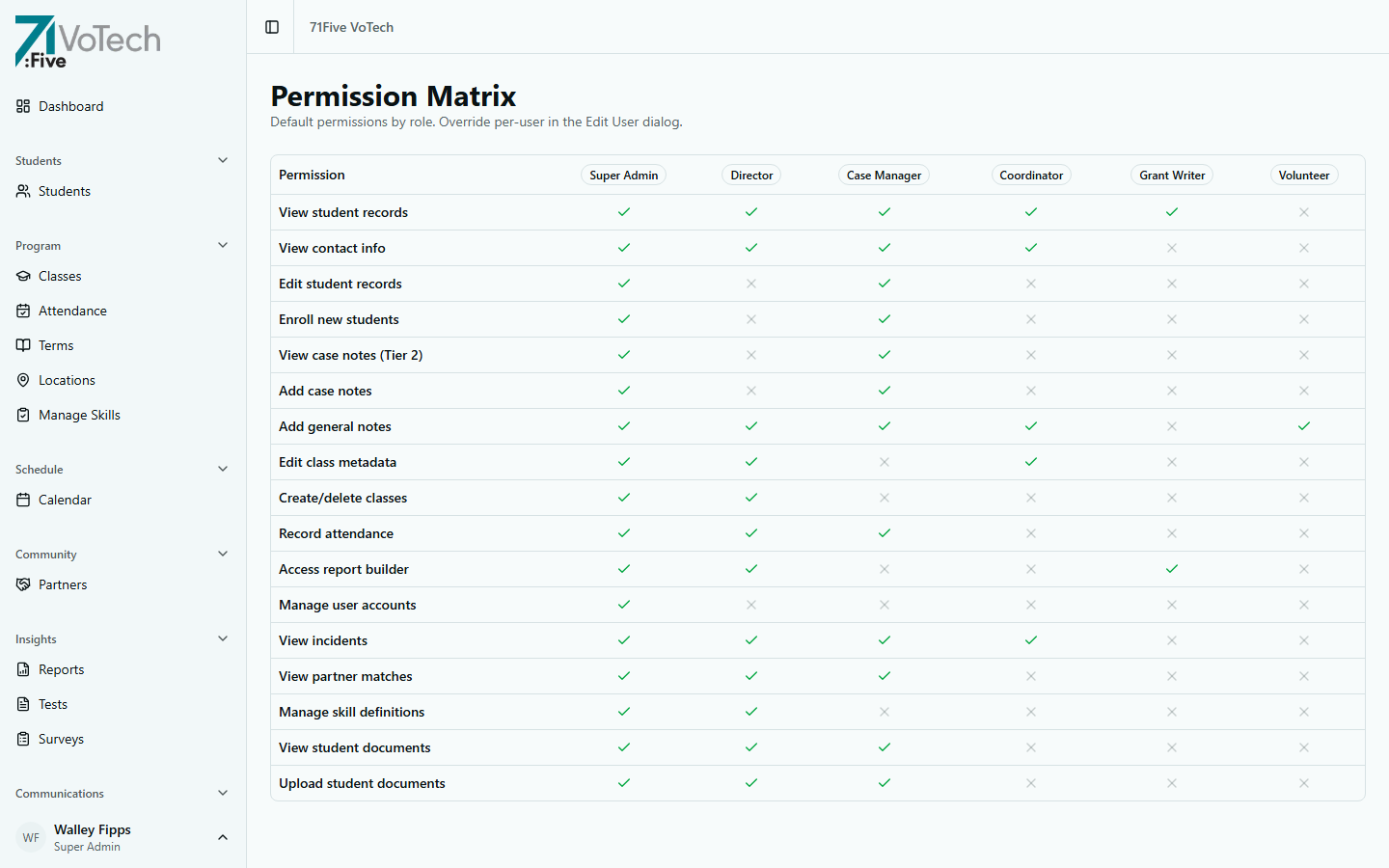
This page is for reference only — you cannot toggle permissions here. To override a specific user's permissions, go to User Management and use the Edit User dialog, which has a permissions override section.
Per-user overrides are stored separately from role defaults. Only non-default values are saved — so if a user's overrides are removed, they revert to their role's default permissions.
Career Paths
Available to: Super Admin, Director
Career Paths at Program → Career Paths manages the career interest options shown during student enrollment. Paths are location-specific — each location can have its own set.
- Location filter — toggle between locations or view all
- Add Career Path — enter a name (e.g., "Plumbing") and select a location
- Toggle active/inactive — deactivated paths no longer appear in enrollment dropdowns
If the career path dropdown is empty during enrollment, the admin hasn't configured paths for that location yet. Add them here.
Milestone Types
Available to: Super Admin, Director, Case Manager, Coordinator
Milestone Types at Program → Milestone Types configures the achievement categories available when recording student milestones (e.g., "Achieved Diploma", "Job Placement").
The page has two tabs:
Types Tab
- Add Milestone Type — enter a label; a key is auto-generated (e.g., "Achieved Diploma" →
achieved_diploma) - Each type has a sort order, active/inactive status, and auto-generated key
- Toggle active/inactive to show/hide from milestone recording
Templates Tab
- Manages enrollment templates for milestones — pre-configured sets of milestones assigned to students at enrollment
Certification Types
Available to: Super Admin, Director
Certification Types at Admin → Certifications configures the certification options available when recording student credentials (e.g., "CompTIA A+", "OSHA 10").
- Add Certification Type — enter a label and optional default issuing body
- A key is auto-generated from the label
- Each type has a sort order and active/inactive status
- Toggle active/inactive to show/hide from certification recording
System Settings
System-wide configuration options:
Notification Settings
- Default email sender — the "from" address for all VoTech emails
- SMS settings — Twilio configuration for text messages
- Notification retry — how many times to retry failed notifications
Data Settings
- Default location — which location is pre-selected for new records
- Active term — which term is currently active (also manageable from Terms page)
- SSN encryption key — managed separately for security
Security Settings
- Session timeout — how long before an inactive session expires
- Allowed email domains — which Google domains can create accounts
Be extremely careful with system settings. Changes affect every user and every location immediately. Document what you changed and why.
Tips & Common Mistakes
Schedule regular backup reviews. Create backups at least weekly, and definitely before term transitions, bulk data changes, or system updates.
Review the audit trail monthly for unusual patterns — bulk data access, off-hours sign-ins, or repeated failed login attempts. These could indicate security concerns.
Related Guides
- User Management — managing accounts and permissions
- Data Tier Definitions — understanding what the audit trail tracks
- A Note About Student Privacy — why audit trails matter