Signing In
Goal: Sign in to VoTech using your Google account.
VoTech uses Google OAuth — you sign in with the same Google account your administrator set up for you. There are no separate usernames or passwords to remember.
Steps
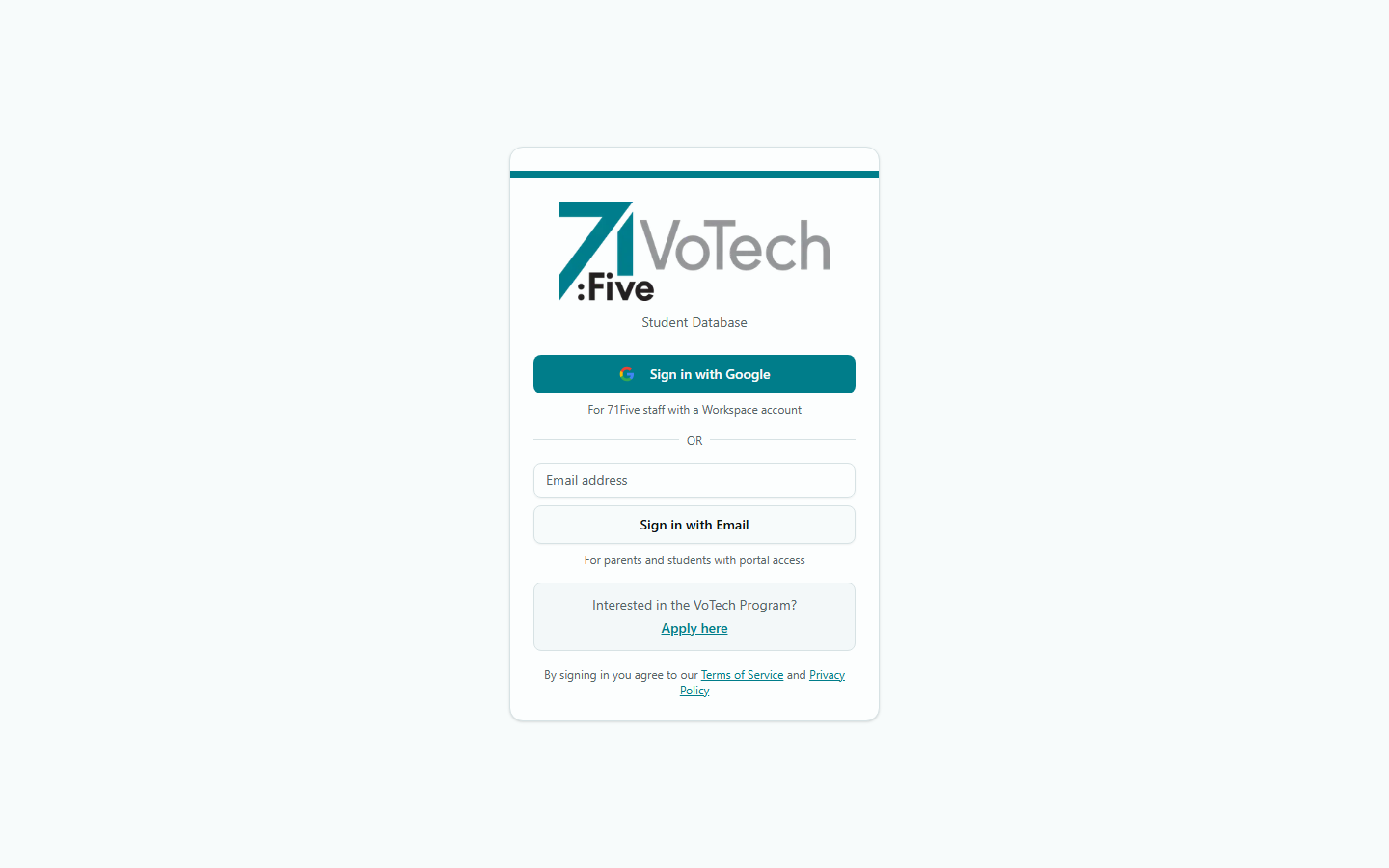
- Open your browser and go to votech.71five.org
- Click Sign in with Google
- Select your 71Five Google account (or enter the email your admin gave you)
- Complete Google's sign-in process (you may be asked for 2-factor authentication)
- You'll land on your Dashboard
Bookmark votech.71five.org so you can get back quickly. On your phone, you can add it to your home screen.
First-Time Sign In
The first time you sign in, you'll be asked to:
- Accept the Terms of Service — scroll through both the Terms of Service AND Privacy Policy documents
- Click "Continue to Dashboard" to proceed
If you see a message saying "Your account is pending approval," your administrator hasn't activated your account yet. Contact Mark or Walley.
Idle Timeout
VoTech automatically signs you out after 15 minutes of inactivity. A 60-second warning dialog appears before sign-out. Click anywhere in the app to reset the timer.
What to Expect
After signing in, you'll see the Dashboard with tabs for:
- My View — your schedule, your students, your tasks
- Location — stats and classes for your site
- Program — org-wide metrics (Directors and Super Admins only)
Tips & Common Mistakes
Always use the Google account your administrator set up for you. Personal Gmail accounts won't work unless they've been specifically added to the system.
If you're using a shared computer, always sign out when you're done. Click your avatar at the bottom of the sidebar and select Sign Out.