Tests & Grading
Goal: Create tests, distribute them to students, and review graded results.
VoTech supports four question types and offers auto-grading for objective questions. Tests are distributed via unique token links that students access on their phone or computer.
Creating a Test
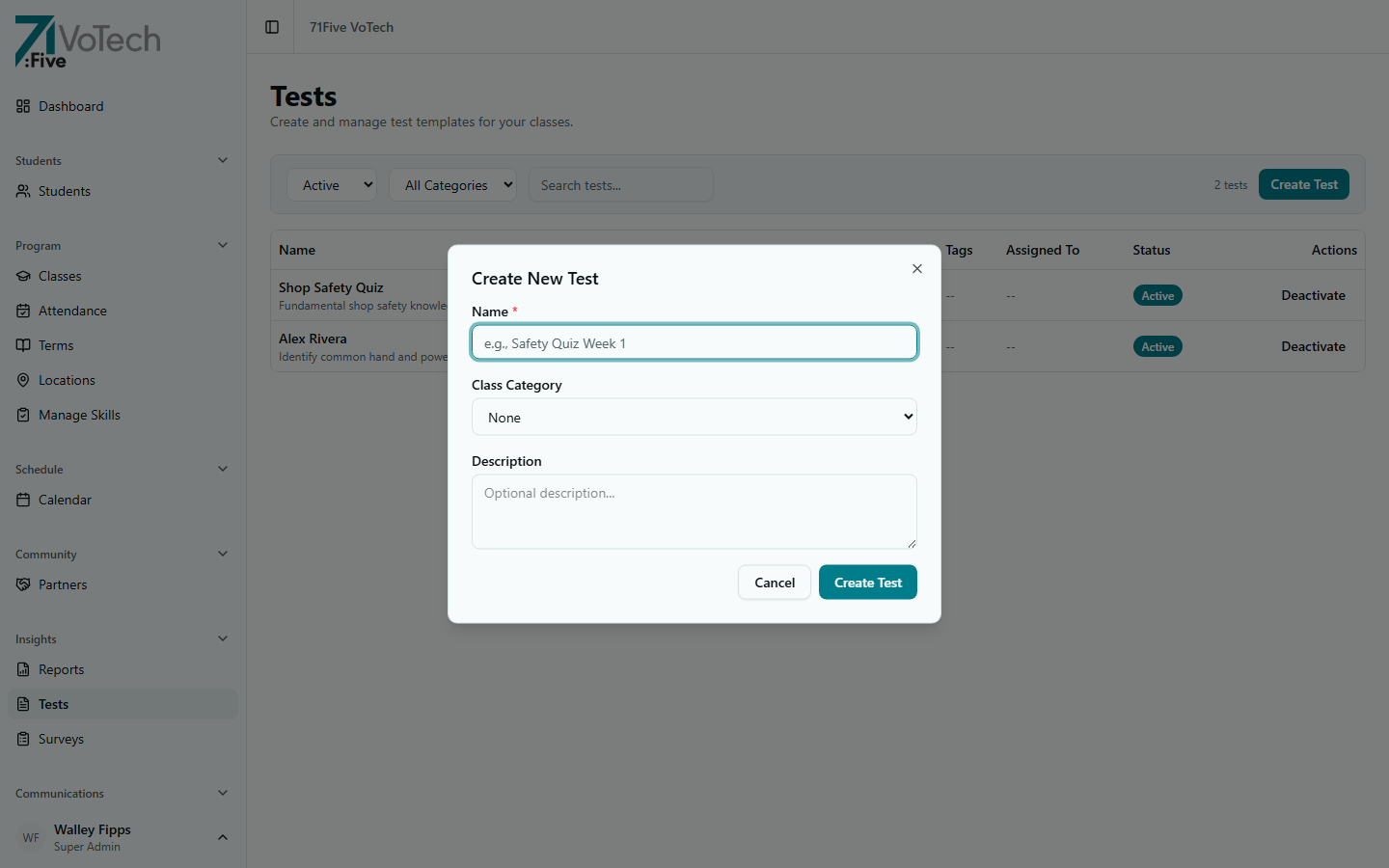
- Click Tests in the sidebar under Insights
- Click Create Test
- Enter the test details:
- Title — a descriptive name (e.g., "Welding Safety Quiz - Week 4")
- Description — optional instructions for students
- Class — which class this test is for
- Add questions using the question builder
Question Types
| Type | How It Works | Auto-Graded? |
|---|---|---|
| Multiple Choice | Student selects one answer from options | Yes |
| True / False | Student selects True or False | Yes |
| Short Answer | Student types a brief response | No — requires manual grading |
| Essay | Student types a longer response | No — requires manual grading |
For each question:
- Select the question type
- Enter the question text
- For Multiple Choice: add answer options and mark the correct one
- For True/False: select the correct answer
- Set the point value (how much this question is worth)
- Click Add Question to add it to the test
You can reorder questions by dragging them. Put easier questions first to build student confidence before harder ones.
Test Detail & Question Editor
After creating a test, you land on the test detail page where you manage questions.
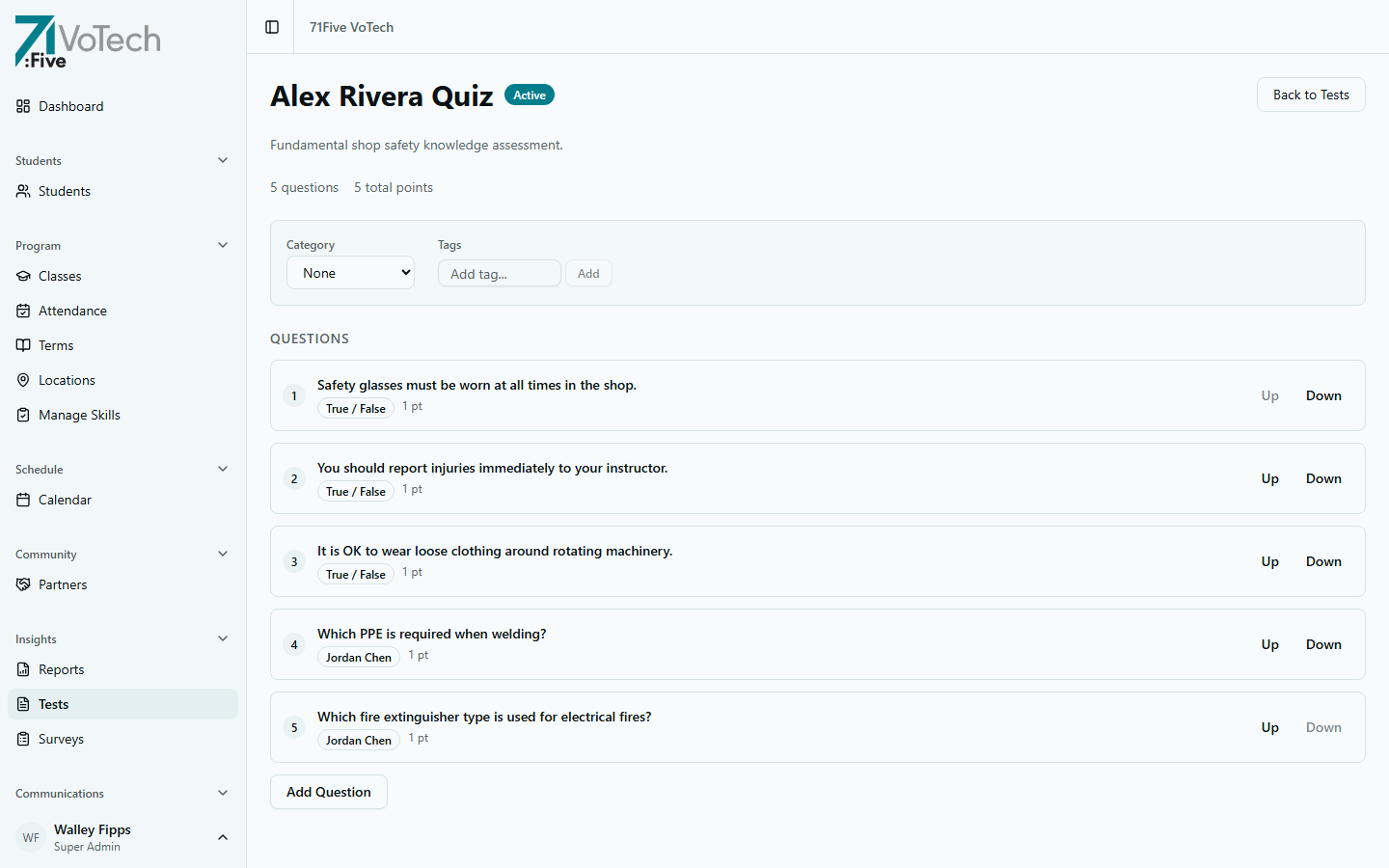
The test detail page shows:
- Test name and status (Active/Inactive) at the top
- Category and Tags for organizing tests
- Questions list with numbering, question type badges, point values, and reorder controls (Up/Down)
- Add Question button at the bottom to add more questions
Distributing a Test
Once your test is created:
- Click Distribute on the test
- Select the class to distribute to
- VoTech generates unique token links — one per student
- Choose distribution method:
- Email — sends the link directly to each student's email
- SMS — sends via text message
- Manual — copy links to share however you prefer
Each token link is unique to the student — it identifies who is taking the test without requiring them to sign in.
Token links are single-use. Once a student submits their answers, the link cannot be used again. If a student needs to retake the test, you'll need to generate a new distribution.
Auto-Grading & Manual Grading
Auto-Graded Questions (Multiple Choice, True/False)
- Graded instantly when the student submits
- Scores appear in the test results immediately
Manually Graded Questions (Short Answer, Essay)
- Marked as "Pending Review" after submission
- To grade:
- Open the test from the Tests page
- Click Results
- Click on a student with pending questions
- Read the response and assign a score (0 to the question's point value)
- Click Save Grade
Tests with manually graded questions will show as "Partially Graded" until you review and score every short answer and essay response.
Viewing Test Results & Reports
- Open the test from the Tests page
- Click Results to see:
- Class average — overall score across all students
- Individual scores — each student's total and per-question breakdown
- Question analysis — which questions most students got right/wrong
- Click Export to download results as CSV
Results also appear on each student's Detail Page under the Tests section.
Tips & Common Mistakes
Write clear, unambiguous questions. For multiple choice, make wrong answers plausible but clearly distinct from the correct answer. Avoid "all of the above" and "none of the above" for vocational knowledge checks.
Only Super Admins and Directors can create and manage tests. If you're a Case Manager who needs test results, you can view them on the student's detail page.
Related Guides
- Surveys
- Student Detail Page — view test results per student
- Report Builder — include test data in reports