Surveys
Goal: Create surveys to collect feedback from students, distribute them, and view aggregate results.
Surveys are for collecting opinions and feedback — they're not graded. Use tests for knowledge assessment and surveys for satisfaction, program feedback, or check-ins.
Survey Types
| Type | Behavior |
|---|---|
| Standard | Manual distribution to selected audience |
| Exit | Auto-triggers when a student completes the program |
| Point-in-Time | Snapshot survey for a specific date/event |
| Follow-Up | Linked to the follow-up schedule (3/6/9/12 month) |
| Poll | Linked to a specific class session |
Creating a Survey
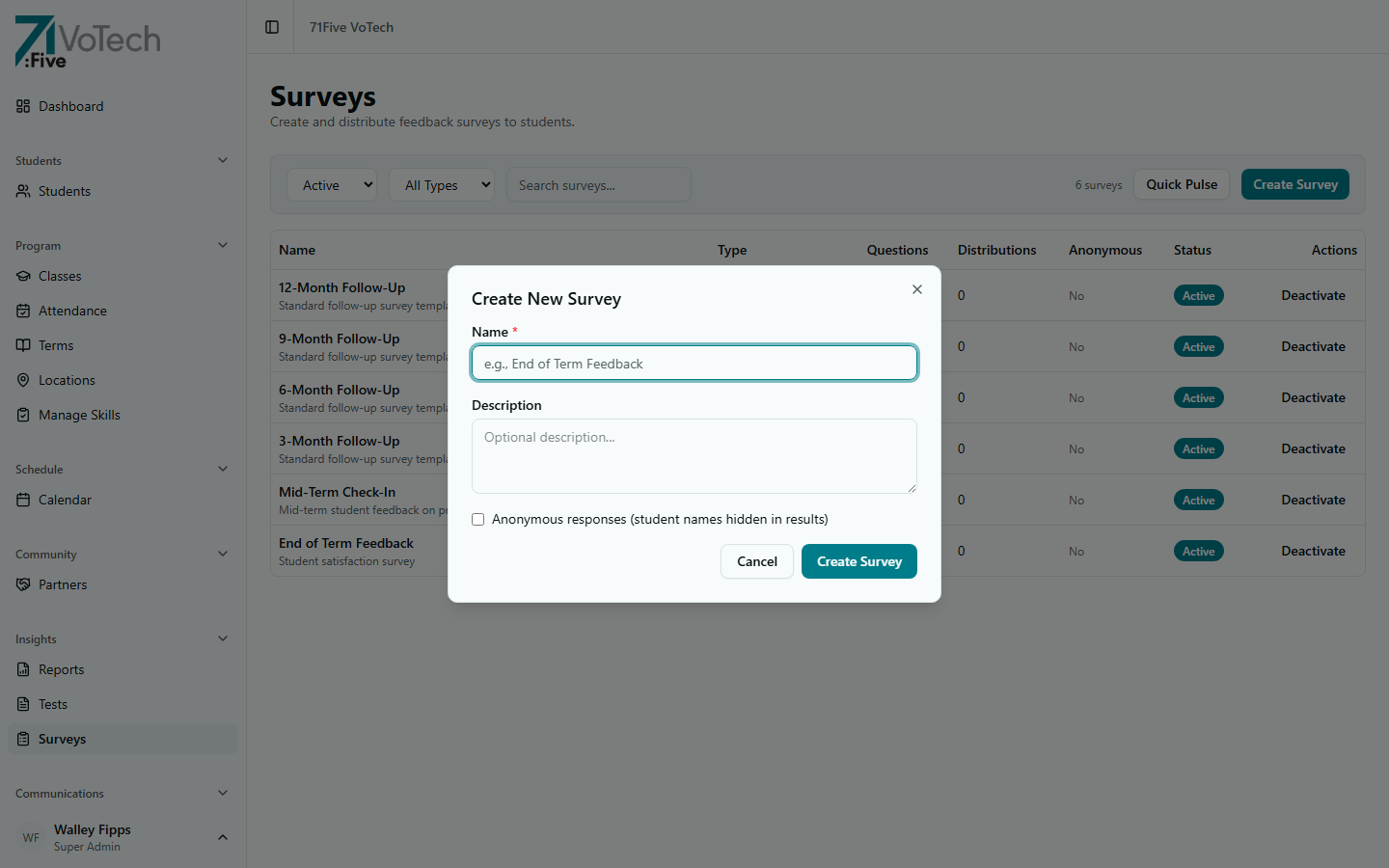
- Click Surveys in the sidebar under Insights
- Click Create Survey
- Enter survey details:
- Title — e.g., "End-of-Term Feedback"
- Description — what the survey is about (shown to students)
- Class or Audience — who should receive it
- Add questions
Question Types
| Type | How It Works |
|---|---|
| Likert Scale | Student rates on a scale (e.g., Strongly Disagree → Strongly Agree) |
| Rating | Student gives a numeric rating (e.g., 1-5 stars) |
| Multiple Choice | Student selects one option from a list |
| Text | Student types a free-form response |
For each question:
- Select the question type
- Enter the question text
- For Likert: the standard 5-point scale is used automatically
- For Rating: set the min and max values
- For Multiple Choice: add the response options
- Mark the question as Required or optional
Survey Detail & Questions
After creating a survey, the detail page lets you manage questions and view configuration.
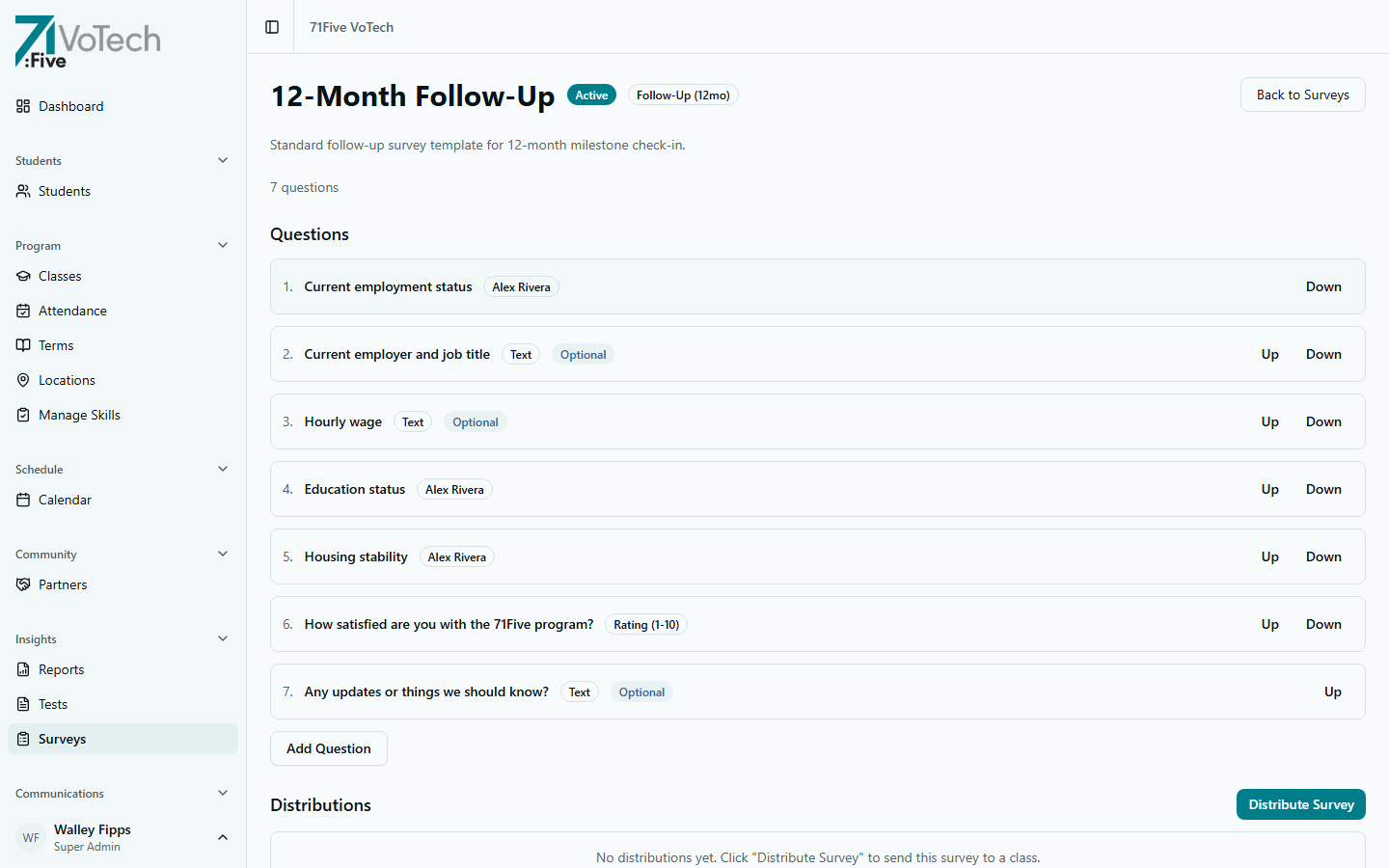
Each question shows its type (Likert, Rating, Multiple Choice, or Text), whether it's required, and its position in the survey.
Distributing a Survey
Distribution works the same way as tests:
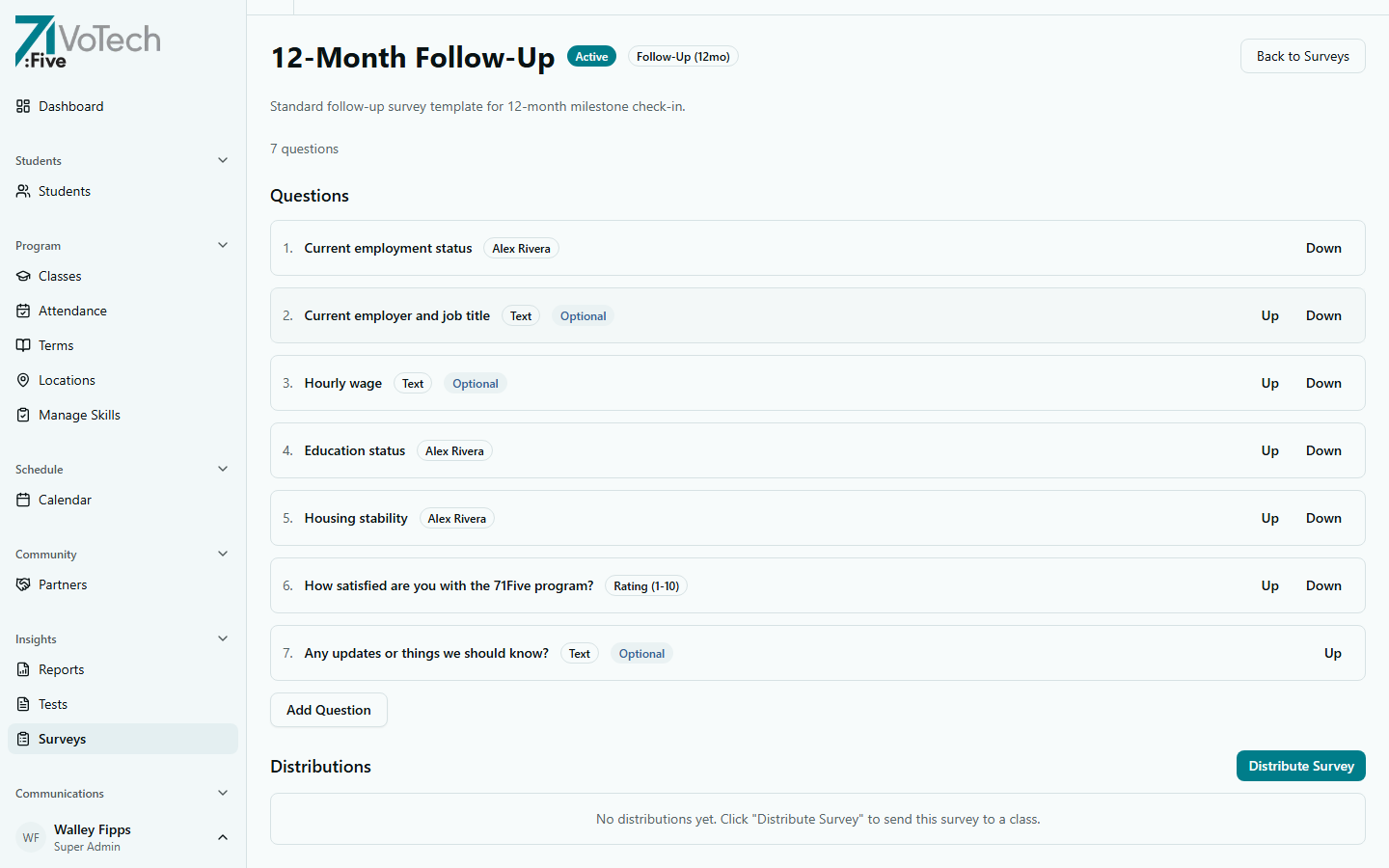
- Click Distribute on the survey
- Select the audience
- Choose Email, SMS, or Manual distribution
- Unique token links are generated for each recipient
Keep surveys short — 5 to 10 questions maximum. Response rates drop significantly after 10 questions, especially on mobile.
Viewing Responses
- Open the survey from the Surveys page
- Click Responses to see:
- Response rate — how many people completed the survey out of total distributed
- Aggregate results — averages for Likert/Rating, distribution for Multiple Choice
- Individual responses — each person's answers (if not anonymous)
- Text responses — free-form answers listed in full
Aggregate Reports
The survey results page includes visualizations:
- Bar charts for Likert and Rating questions (showing response distribution)
- Pie charts for Multiple Choice questions
- Response table for text questions
Click Export to download all responses as CSV for further analysis.
Tips & Common Mistakes
Surveys and tests use the same distribution mechanism (token links via email/SMS). The difference is that surveys are not graded and can include Likert/Rating question types.
Use Likert scales for questions where you want to track trends over time (e.g., "I feel supported in this program" — compare start of term vs. end of term).
Related Guides
- Tests & Grading
- Daily Check-Ins
- Report Builder — include survey data in reports