Staff-to-Student Messages
Goal: Send and view messages to individual students through VoTech.
Messages are direct communications between staff and students, logged on the student's record. Unlike notifications (which are broadcast-style), messages are one-to-one conversations.
Sending a Message
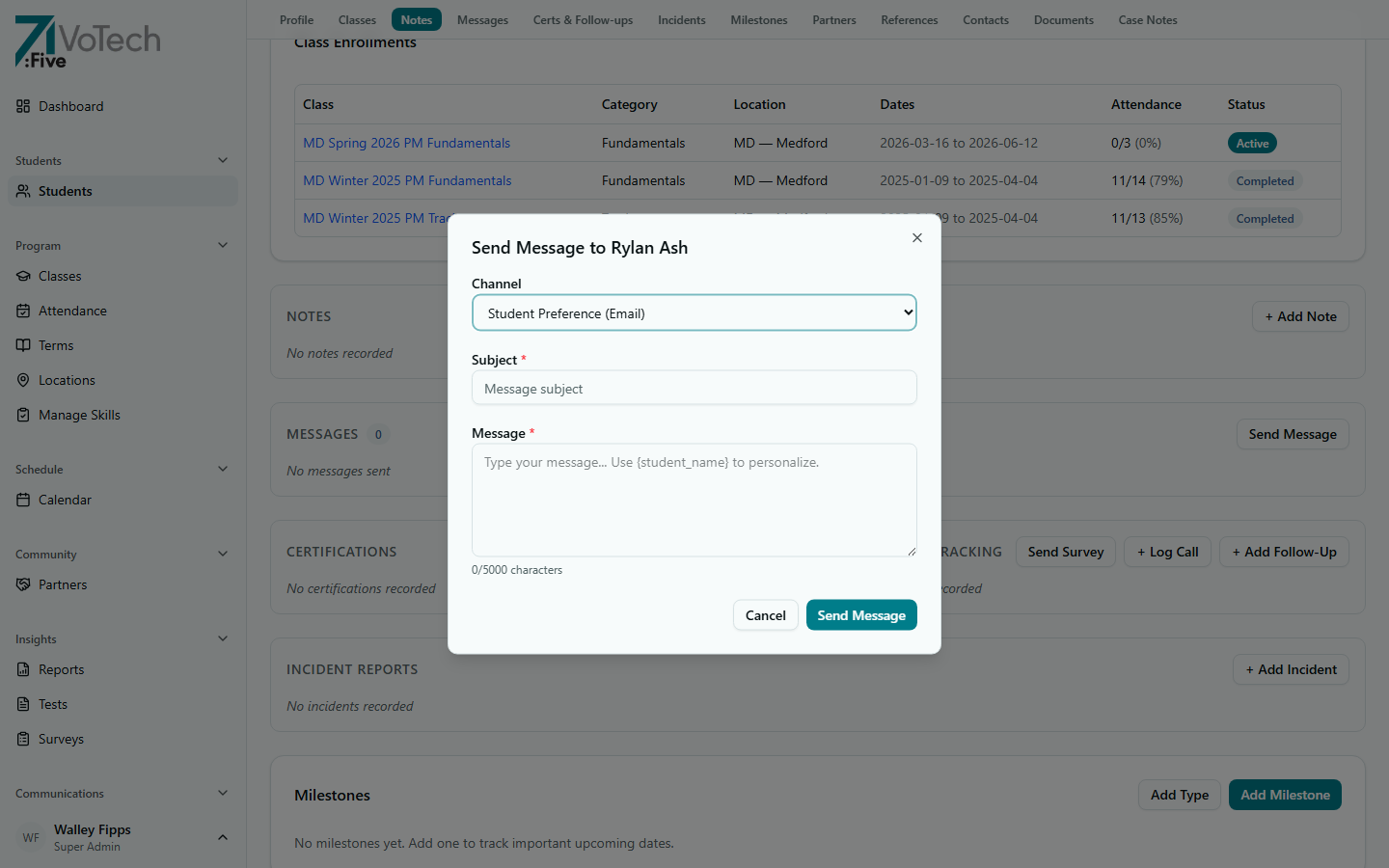
- Open the student's Detail Page
- Scroll to the Messages section
- Click Send Message
- Select the Channel — defaults to the student's preference (Email or SMS)
- Enter a Subject and Message (supports
{student_name}merge field) - Click Send Message
The message is:
- Saved to the student's record
- Delivered via the student's preferred contact method (email or SMS)
- Visible in the message history on the detail page
Viewing Message History
- Open the student's Detail Page
- Scroll to the Messages section
- All messages are shown in chronological order with:
- Sender — which staff member sent it
- Date and time
- Message content
- Delivery status — sent, delivered, or failed
Who Can View and Send
| Action | Super Admin | Director | Case Manager | Coordinator | Volunteer |
|---|---|---|---|---|---|
| View messages | Yes | Yes | Yes | Yes | Yes |
| Send messages | Yes | Yes | Yes | Yes | Yes |
Grant Writers, Parents, and Students cannot see the Messages section on a student's detail page.
Inbound SMS Replies
When a student or contact replies to an SMS message, VoTech captures it via a Twilio webhook and stores it in the inbound_messages table. Inbound replies are visible to Super Admin, Director, Case Manager, and Coordinator.
Replies appear in the student's message history alongside outbound messages, so you can follow the full conversation thread.
Inbound SMS only works for contacts who have replied to a VoTech-sent SMS. VoTech cannot receive unsolicited texts — the contact must be responding to an existing message.
Messages vs. Notifications
| Messages | Notifications | |
|---|---|---|
| Audience | One student | One or many students |
| Purpose | Direct conversation | Announcements, reminders, links |
| Templates | No | Yes (20+ templates) |
| Scheduling | No — sends immediately | Yes — can schedule for later |
| Where to find | Student's detail page | Notifications Hub |
Use messages for individual outreach. Use notifications for anything going to multiple students or anything that needs a template.
Tips & Common Mistakes
Never include Tier 1 or Tier 2 data in messages. Messages are delivered via email or SMS — unencrypted channels. Keep sensitive discussions for in-person conversations.
Messages create a paper trail. If you're following up on an attendance concern, a behavioral issue, or a schedule change, send it as a message so there's a documented record on the student's profile.
Related Guides
- Notifications Hub — for bulk and template-based outreach
- Student Detail Page — messages section