Volunteer Management
Goal: Assign volunteers to classes, manage schedules, and understand what volunteers can see and do.
Volunteers support classroom activities — assisting instructors, mentoring students, and helping with hands-on projects. VoTech tracks volunteer assignments and schedules alongside staff roles.
Assigning a Volunteer
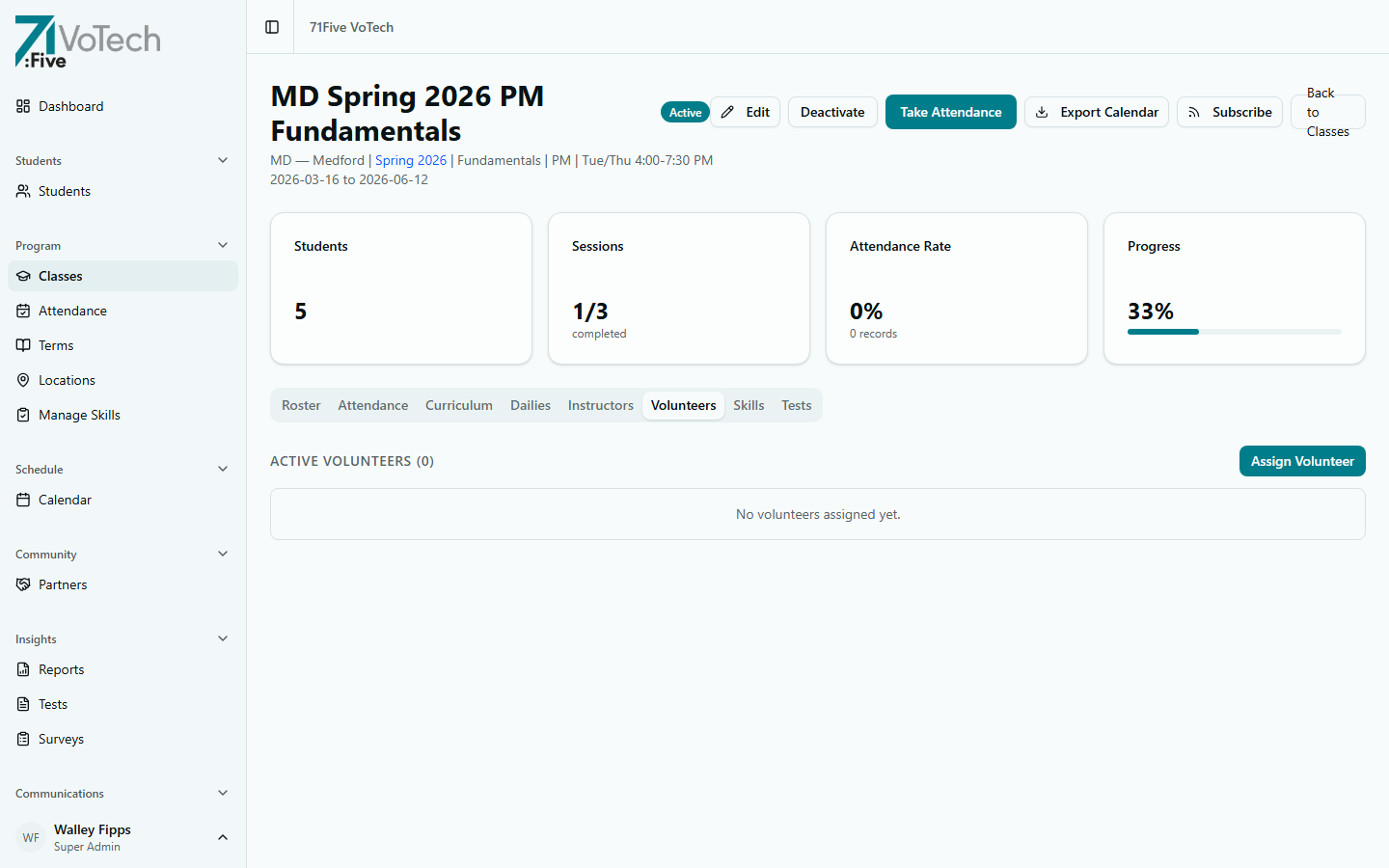
Available to: Super Admin, Director
- Open the class you want to add a volunteer to (Managing Classes)
- Go to the Volunteers tab
- Click Assign Volunteer
- Fill in the assignment details:
- Volunteer — select from the dropdown
- Assignment Role — Assistant, Mentor, etc.
- Start Date / End Date — when the assignment is active
- Notes — optional context about the assignment
- Click Assign Volunteer
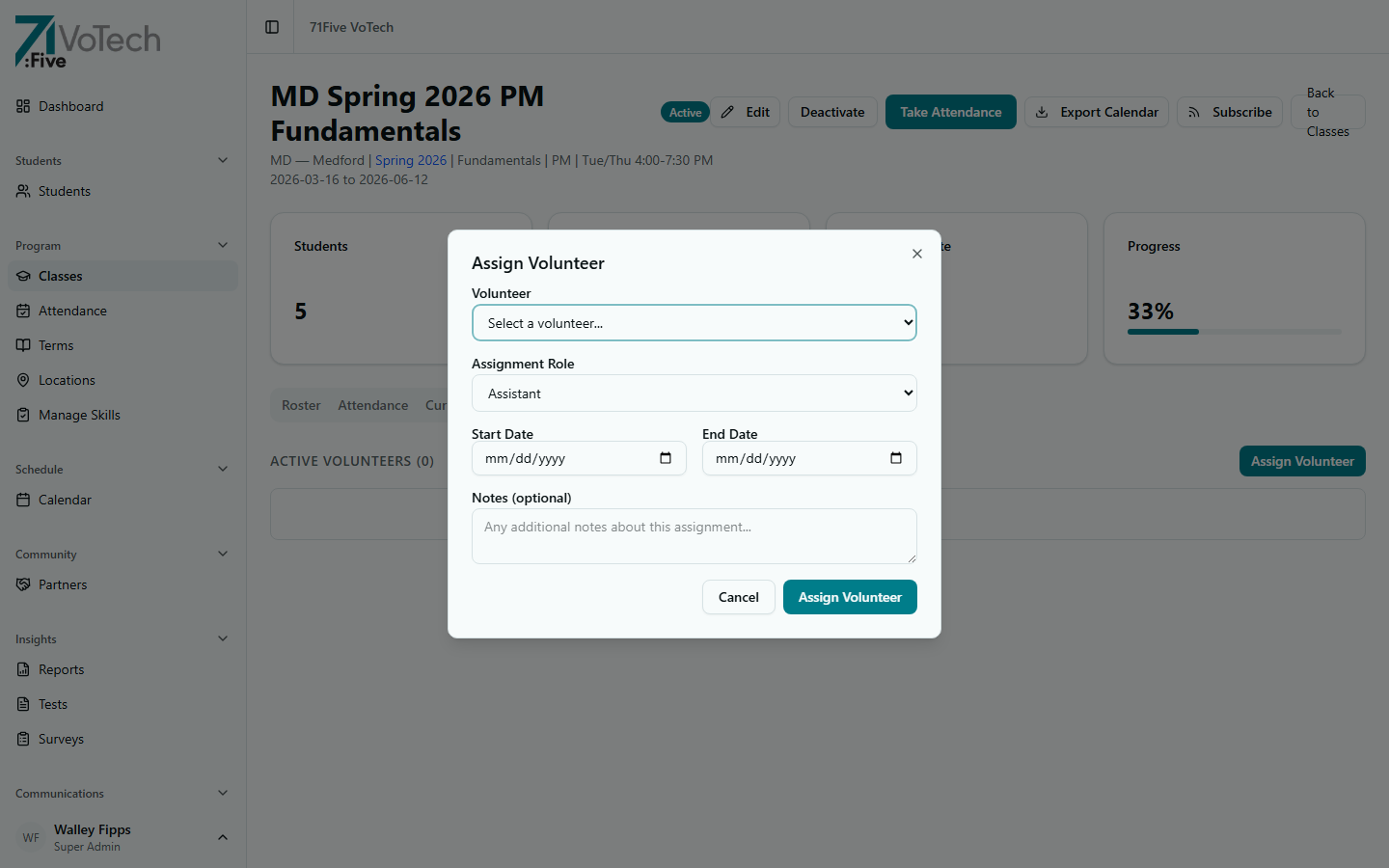
The volunteer receives an automatic Volunteer Assignment notification via email.
Volunteer Schedules
Volunteers can be assigned to specific sessions rather than every session:
- Open the volunteer's assignment on the class detail page
- Set the schedule:
- All sessions — the volunteer is expected at every class session
- Specific days — select which days of the week
- Custom dates — pick individual sessions
- Click Save
Use the Volunteer Reminder notification template to send schedule reminders the day before their assigned sessions.
What Volunteers Can See
Volunteers have the most restricted access in VoTech:
| Feature | Access |
|---|---|
| Student roster | Names and identity section only |
| Student detail page | Identity section only — all other sections hidden |
| Attendance | Can mark students (same as other staff) |
| Notes | Can add notes to student records |
| Everything else | Not visible |
Volunteers cannot see contact information, education records, health data, case notes, ACE scores, or any sensitive data. This is by design — volunteers need to know who students are and take attendance, but don't need access to personal information.
Updating or Removing a Volunteer
Available to: Super Admin, Director
Updating
- Open the class detail page
- Find the volunteer in the Roster tab
- Click Edit Assignment to change their schedule
- Click Save
The volunteer receives a Volunteer Update notification.
Removing
- Open the class detail page
- Find the volunteer in the Roster tab
- Click Remove
- Confirm
The volunteer receives a Volunteer Removal notification.
Removing a volunteer from a class doesn't delete their user account. They can still sign in — they just won't have any active class assignments.
For Volunteers: Your View
If you're a volunteer, here's what you need to know:
- Sign in at votech.71five.org with your Google account
- Your Dashboard shows your assigned classes and upcoming sessions
- Click into a class to take attendance during your assigned sessions
- Click a student's name to see their Identity information (name, photo, basic info)
- You can add notes about student participation or observations
That's it — the system is designed to give you exactly what you need without overwhelming you with data you don't need.
You also have access to an ICS calendar feed showing your assigned sessions. Subscribe in your calendar app to see your VoTech schedule alongside your personal events.
Related Guides
- Managing Classes — assigning volunteers to classes
- Taking Attendance — how attendance works
- Notifications Hub — volunteer notification templates
- Understanding Your Role