QR Invite & Referral System
Goal: Generate QR codes and invite links to refer potential students into the VoTech program.
The QR invite system lets you create shareable links and printable QR codes that direct potential students to the interest form. Each invite is tracked so you can see which referral sources bring in the most students.
VoTech has two distinct invite systems. QR Invites (this page) are referral links for prospective students — they lead to the /apply interest form. Portal Invites are staff-sent activation links that allow existing students or parents to create a portal account via /join/[token]. See Public Forms for details on the portal invite flow.
Creating an Invite
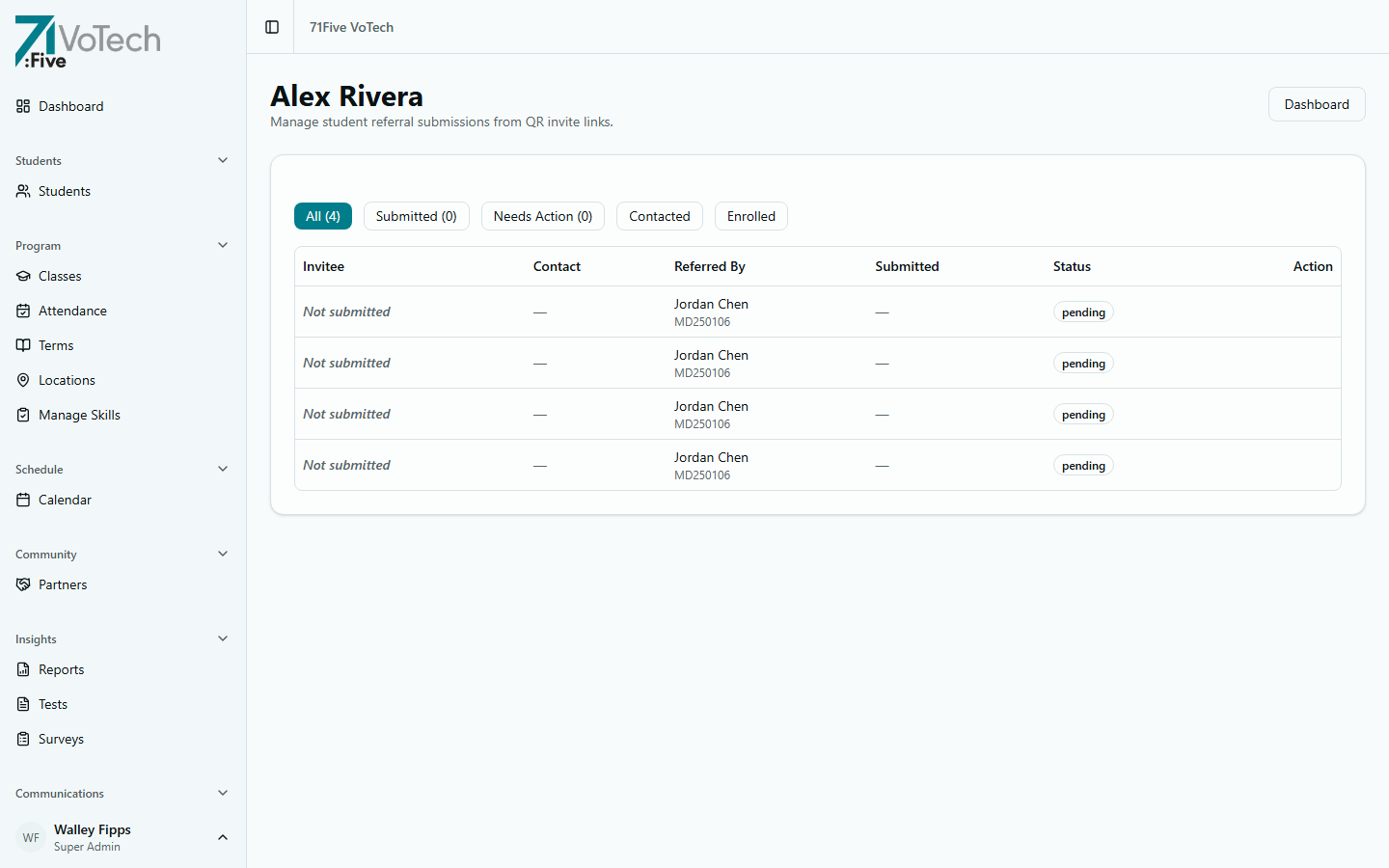
- Click Invites in the sidebar under Admin
- Click Create Invite
- Configure the invite:
- Name/Label — describe the source (e.g., "Medford Job Fair 2026", "School Counselor Flyer")
- Location — which VoTech location this invite is for
- Expiration (optional) — set a date when the link stops working
- Click Generate
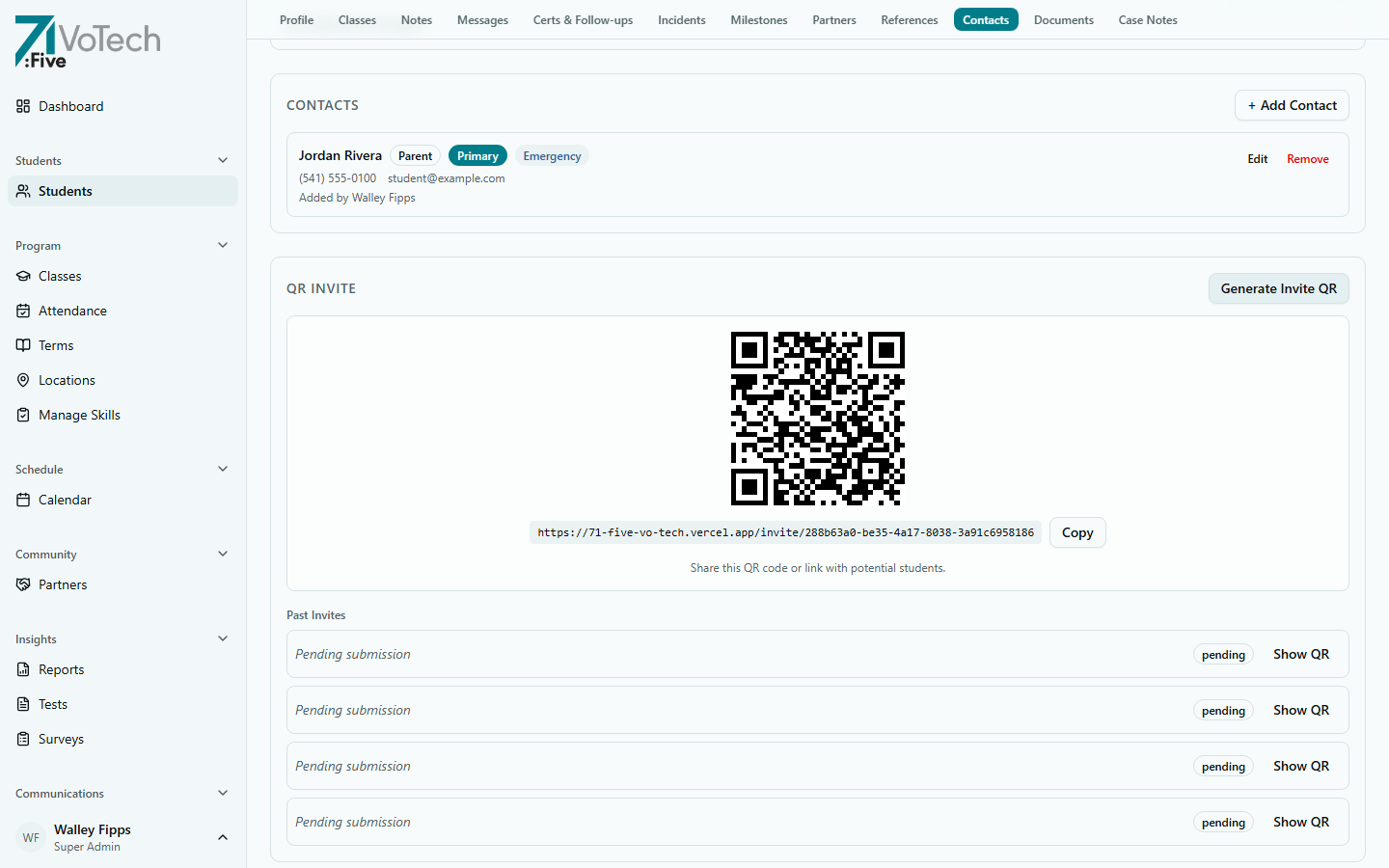
VoTech creates:
- A unique URL you can share via email, text, or social media
- A QR code image you can download and print on flyers, business cards, or posters
The QR Invite section also appears on each student's detail page under Contacts, where you can generate invite QR codes tied to that student as a referral source.
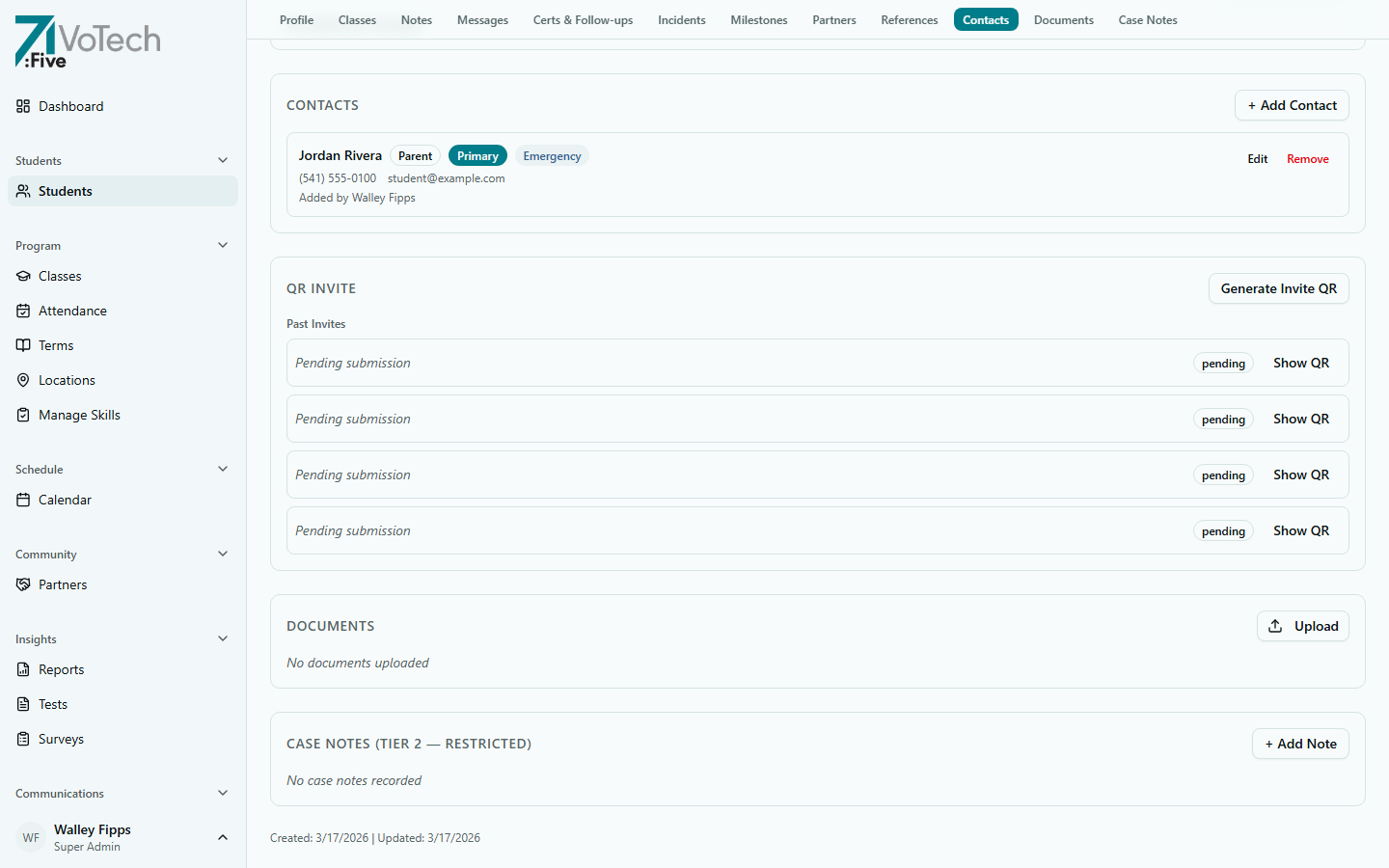
After generating, the QR code and invite link are displayed for printing or sharing.
Using QR Codes
Printing
- The QR code is displayed inline as an SVG image
- Print the page or take a screenshot to add to your flyers, posters, or handouts
- When scanned, it takes the person directly to the VoTech interest form
Digital Sharing
- Click Copy URL to copy the invite link
- Share via email, text, or social media — the link works on any device
Print QR codes on materials you hand out at job fairs, school visits, community events, and church outreach. Each QR code is tracked, so you'll know which events generate the most applications.
Tracking Referrals
- Go to the Invites page
- The table shows each invite with columns: Label, Code, Location, Category, Scans, Status, and Created date
- The Scans column shows how many times the QR code / link was used
This scan count helps you understand which outreach channels generate the most interest.
Managing Invites
- Deactivate — disable an invite link without deleting it (expired event, old campaign)
- Reactivate — re-enable a deactivated invite
- Delete — permanently remove (tracking history is preserved)
Invites can be created by Super Admins, Directors, and Case Managers. All three roles have access to the Invites management page.
Tips & Common Mistakes
Create a separate invite for each event or outreach channel. If you reuse the same QR code for everything, you won't be able to tell which channel is working best.
Test the QR code on your phone before printing flyers. Make sure it loads the application form correctly and the location pre-selects properly.
Related Guides
- Public Forms — the application form and other public pages
- Reviewing Applications — processing submitted applications
- Enrolling a New Student — the enrollment workflow