Student Roster
Goal: Find students, filter the roster, and navigate to student profiles.
The Student Roster is the master list of all students you have access to. What you see depends on your role and location.
Who Sees What
| Role | Students Visible |
|---|---|
| Super Admin | All students across all locations |
| Director | All students in your county (Jackson or Josephine) |
| Case Manager | Students at your assigned location |
| Coordinator | Students at your assigned location |
| Grant Writer | Students across multiple locations (read-only, Tier 3-4 data only) |
| Volunteer | Students at your assigned location (limited columns: ID, Name, Location, Status only — DOB, gender, ethnicity, and education are hidden) |
Opening the Roster
- Click Students in the sidebar
- The roster loads showing all students you can access
Searching & Filtering
Quick Search
Type in the search bar at the top to find students by name. The roster filters as you type.
Filters
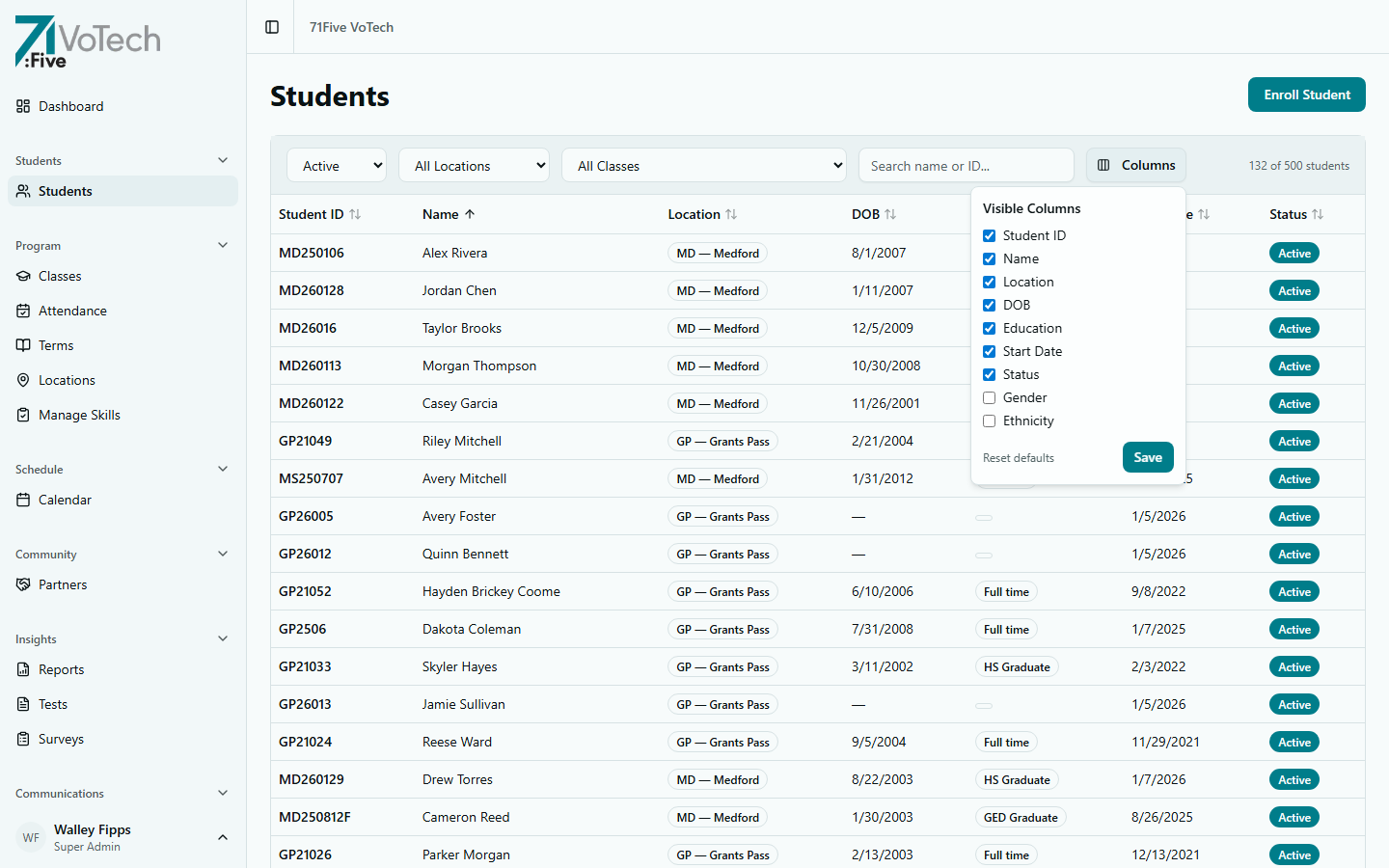
Use the filter controls to narrow the roster:
- Status — Active, Inactive, Completed, Withdrawn
- Location — Medford, Grants Pass, Shady Cove (Super Admins and Directors see all)
- Class — filter by cohort (class enrollment)
- Search — type in the search bar to find by name
Combine filters to quickly find exactly who you need. For example: Location = Medford + Status = Active shows only currently enrolled Medford students.
Sorting & Column Views
Click any column header to sort by that column. Click again to reverse the sort order.
Default columns shown:
- Student ID
- Name (shows preferred name if set, e.g., Adam "AJ" Vanrossum)
- Location
- DOB
- Education
- Start Date
- Status
Column visibility is user-configurable — click the column settings icon to show/hide columns.
Opening a Student Profile
Click any student's name in the roster to open their Student Detail Page.
Volunteers can open student profiles but will only see the Identity section. All other sections are hidden for the Volunteer role.
Tips & Common Mistakes
If you can't find a student, check your filters. A common mistake is having the Status filter set to "Active" when the student has been deactivated.
If you can't see a student at all, they may be at a different location. Students are scoped to locations — you can only see students at locations you're assigned to. Contact your Director if you need access.