Incident Reports
Goal: File an incident report when something happens during a session, and review incident history.
Incident reports document behavioral events, safety concerns, or noteworthy situations that occur during program activities. They create a paper trail for accountability, follow-up, and pattern detection.
When to File a Report
File an incident report when:
- A student is involved in a behavioral issue (disruption, conflict, rule violation)
- A safety concern arises (injury, near-miss, equipment misuse)
- There's a noteworthy event that needs to be documented (student disclosure, external contact)
Severity Levels
| Level | When to Use | Examples |
|---|---|---|
| Minor | Low impact, first occurrence, no immediate risk | Late to class repeatedly, minor rule violation, verbal warning needed |
| Moderate | Disrupts the session, requires intervention | Conflict between students, refusal to follow safety protocol, inappropriate behavior |
| Major | Serious safety risk, potential legal or policy implications | Physical altercation, injury, property damage, threatening behavior, substance use |
Major incidents should also be reported to your Director or Mark Shelamer immediately — don't wait for the system notification. The incident report documents the event; direct communication ensures immediate response.
Filing an Incident Report
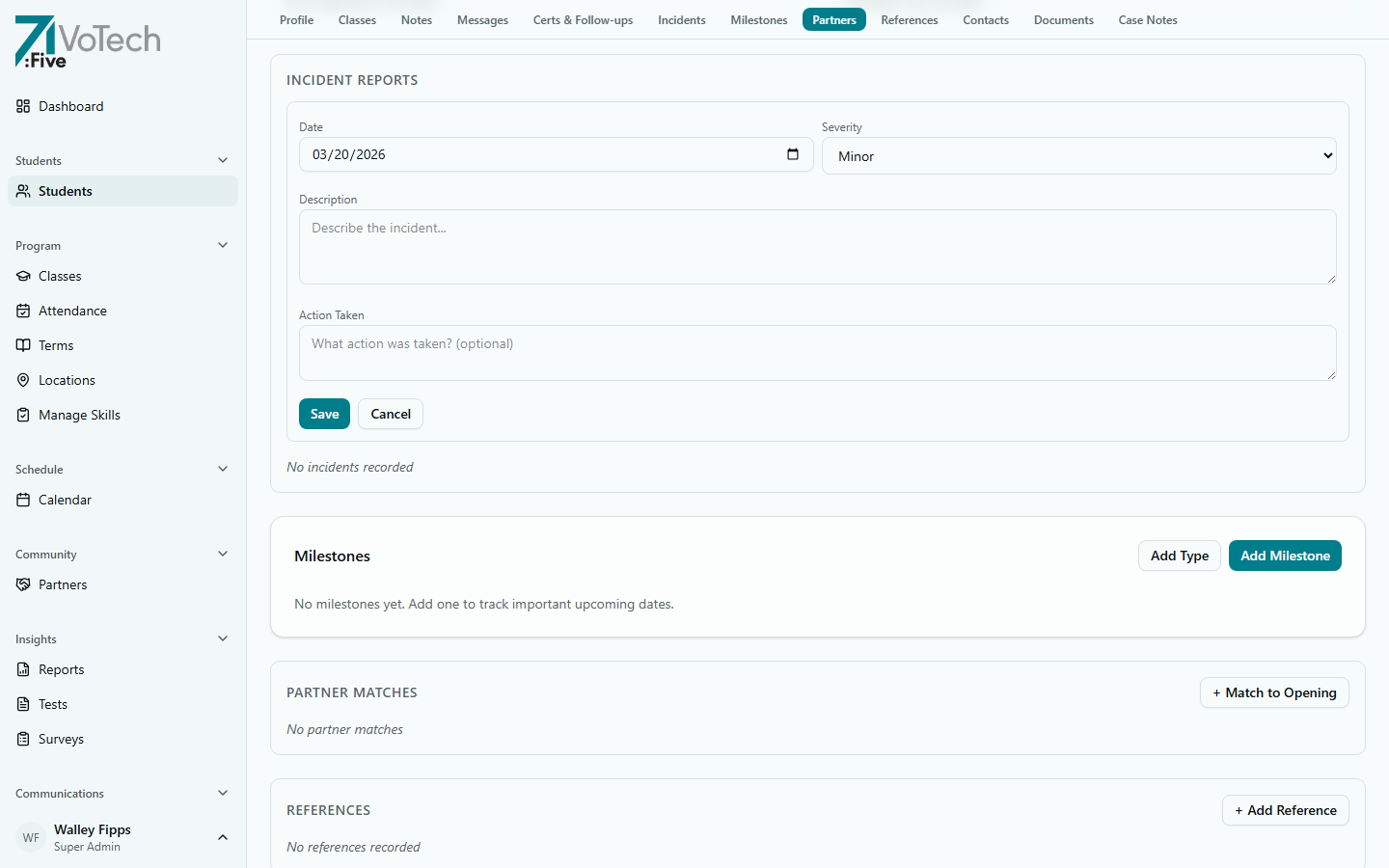
- Navigate to the student's Detail Page
- Scroll to the Incidents section
- Click + Add Incident
- Fill in the form:
- Date and time of the incident
- Severity — Minor, Moderate, or Major
- Description — what happened (be factual and specific)
- Actions taken — what you did in response
- Follow-up needed — any additional steps required
- Witnesses (optional) — other staff or students present
- Click Submit
Write descriptions factually: "Student arrived 20 minutes late and refused to put on safety goggles when asked twice." Avoid judgments or assumptions about motivation.
Attaching Supporting Documentation
When filing an incident, you can attach supporting documents using the "Incident Report" document type. Supported formats: PDF, JPG, PNG, WEBP, TXT, DOC, DOCX (max file size applies).
Attachments are linked to the incident record and visible to anyone who can view the incident.
What Happens After Filing
- The incident is saved to the student's record
- Automatic notification is sent to the Director and Super Admin
- The incident appears in the student's incident history on their detail page
- For Major incidents, the notification is flagged as high priority
Viewing Incident History
Each student's Detail Page has an Incidents section showing:
- All filed incidents in reverse chronological order
- Severity color coding (Minor = yellow, Moderate = amber, Major = red)
- Who filed the report and when
- Description, actions taken, and follow-up notes
Incident reports are visible to Case Managers, Coordinators, Directors, and Super Admins. They are not visible to Grant Writers, Volunteers, Parents, or Students.
Tips & Common Mistakes
Don't use incident reports for routine attendance issues. Those are handled by the attendance system. Incident reports are for events that go beyond normal attendance tracking.
File the report the same day as the incident while details are fresh. Waiting even a day can lead to inaccurate descriptions.
Related Guides
- Student Detail Page — view incident history
- Taking Attendance — for routine attendance issues
- Daily Check-Ins — proactive monitoring