Managing Contacts & Guardians
Goal: Add, edit, and manage contacts linked to students — including parents, guardians, emergency contacts, and counselors.
Contacts are people connected to a student who may need to receive notifications, be reached in an emergency, or provide consent. A single contact can be linked to multiple students (e.g., a parent with siblings in the program).
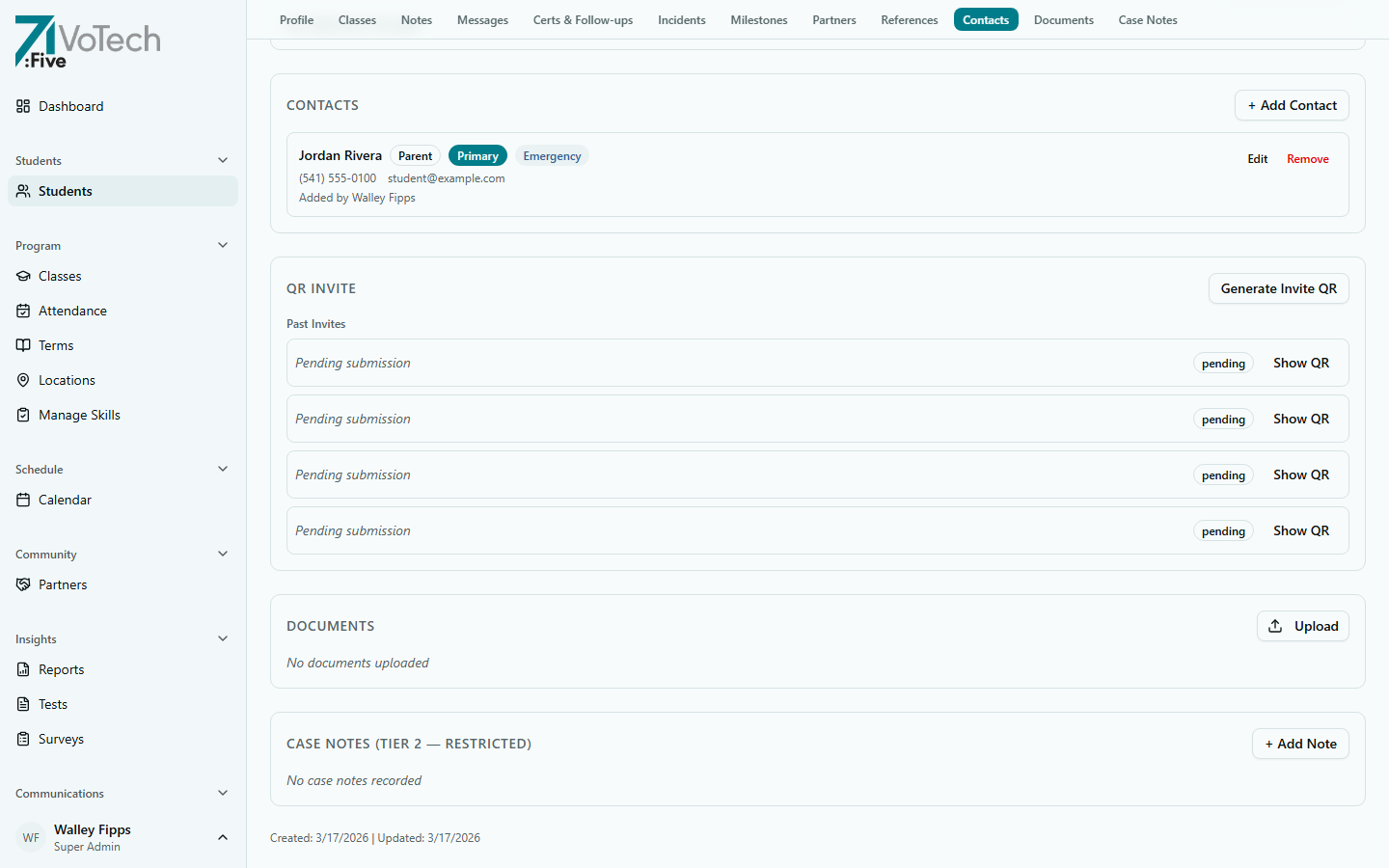
Adding a Contact
- Open the student's Detail Page
- Scroll to the Contacts section
- Click Add Contact
- Enter the contact's information:
- First Name and Last Name (separate fields)
- Phone — formatted automatically as (541) 555-1234
- Email — converted to lowercase automatically
- Relationship — see options below
- Set flags:
- Primary contact — the main person to reach for this student
- Emergency contact — who to call in an emergency
- Click Save
Relationship Types
| Relationship | When to Use |
|---|---|
| Parent | Biological or adoptive parent |
| Guardian | Legal guardian (non-parent) |
| Foster Parent | Current foster family |
| Grandparent | Grandparent serving as caregiver |
| School Counselor | School counselor or guidance advisor |
| School Admin | School administrator (principal, vice principal) |
| Sponsor | Program sponsor or mentor |
| Emergency | Emergency-only contact (not a caregiver) |
| Other | Any relationship not listed above |
Primary & Emergency Flags
- Primary contact — the go-to person for routine communication. Receives enrollment notifications, attendance alerts, and follow-up messages.
- Emergency contact — called in urgent situations (injuries, safety incidents). Should always have a phone number.
A contact can be both primary and emergency. Each student should have at least one of each.
If a student has no emergency contact on file, you'll see a warning on their detail page. Add one as soon as possible — it's critical for safety compliance.
Shared Contacts (Siblings)
When siblings are in the program, you don't need to create duplicate contacts:
- Add the contact to the first student's record
- When adding contacts for the sibling, search for the existing contact by name
- Select the existing contact and link them to the new student
- The contact record is shared — updating the phone number on one student updates it everywhere
Always search for an existing contact before creating a new one. This prevents duplicate records and ensures updates propagate to all linked students.
Editing & Deleting Contacts
Who can add contacts: Case Manager, Coordinator, Director, Super Admin Who can edit or delete contacts: Director and Super Admin only
- Open the student's Detail Page
- Scroll to the Contacts section
- Click on the contact you want to edit
- Update the information
- Click Save
If the contact is shared across multiple students, edits will apply everywhere the contact is linked. This is by design — it keeps information consistent.
Case Managers and Coordinators can add contacts but cannot edit or delete them. If a contact needs to be corrected, ask a Director or Super Admin.
Tips & Common Mistakes
During enrollment (Step 2: Contact), you can add the student's primary contact. For additional contacts (emergency, counselor, case worker), add them from the student's detail page after enrollment.
Verify phone numbers and emails when adding contacts. A wrong number means the parent or guardian won't receive critical notifications — attendance alerts, incident reports, or emergency calls.
Related Guides
- Student Detail Page — contacts section
- Enrolling a New Student — adding contacts during enrollment
- Notifications Hub — sending messages to contacts