The Dashboard
Goal: Understand the three dashboard tabs and find the information most relevant to your role.
The Dashboard is the first screen you see after signing in. It has up to three tabs, depending on your role.
🏠 My View Tab
Available to: All staff roles
Your personal workspace. Shows:
- Your schedule — today's sessions, upcoming classes you're assigned to
- Your students — students at your location (or students you're responsible for)
- Quick actions — take attendance, view roster, add a student
This is where most Case Managers and Coordinators spend their time.
📍 Location Tab
Available to: Coordinator, Case Manager, Director, Super Admin
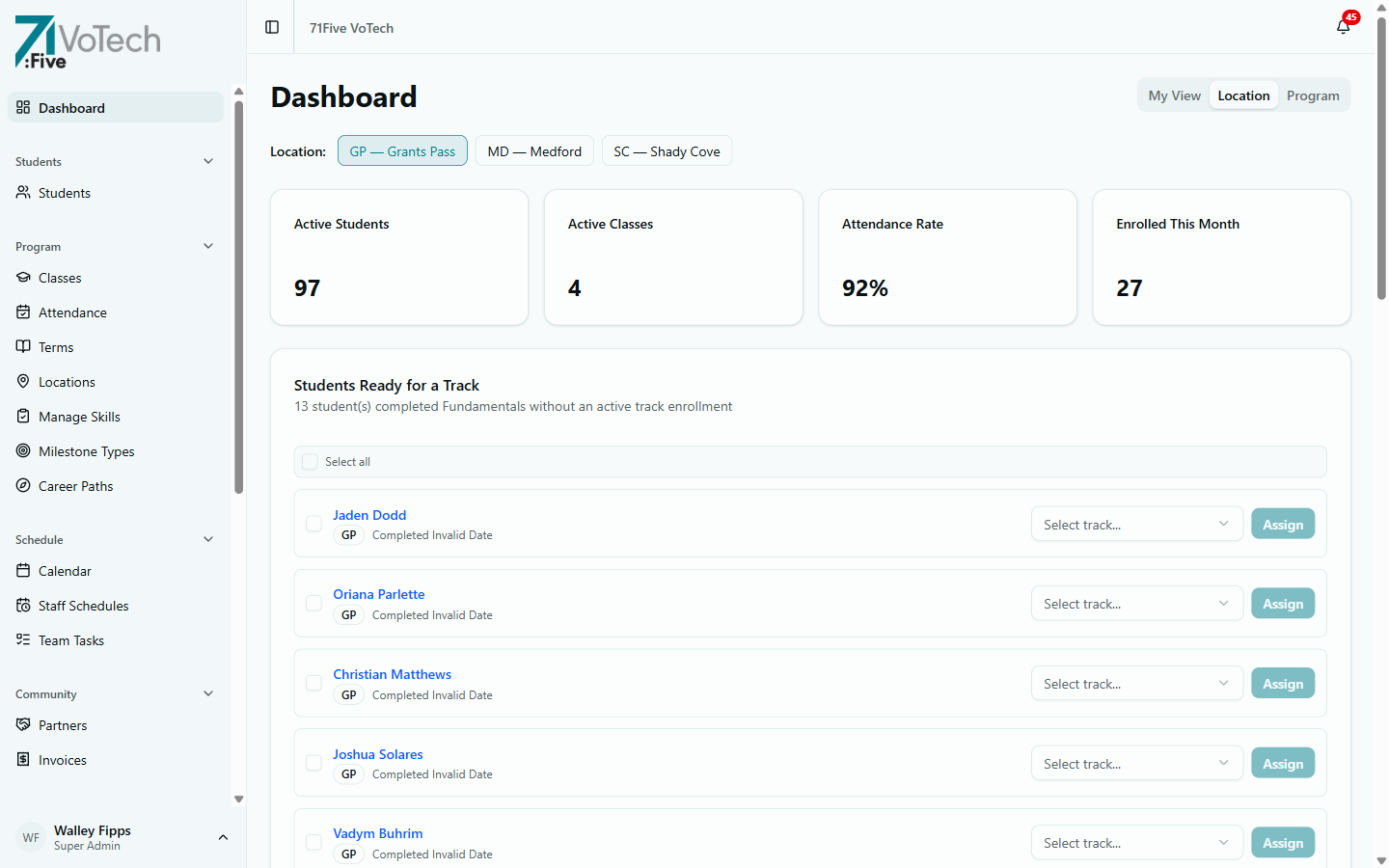
A summary of your location's activity:
- Active classes — how many classes are running this term
- Student count — enrolled students at this location
- Attendance overview — today's attendance status across all classes
- Recent activity — latest enrollments, incidents, and notifications
If you're assigned to multiple locations, you'll see a location picker at the top. Select which site to view.
📊 Program Tab
Available to: Director, Super Admin
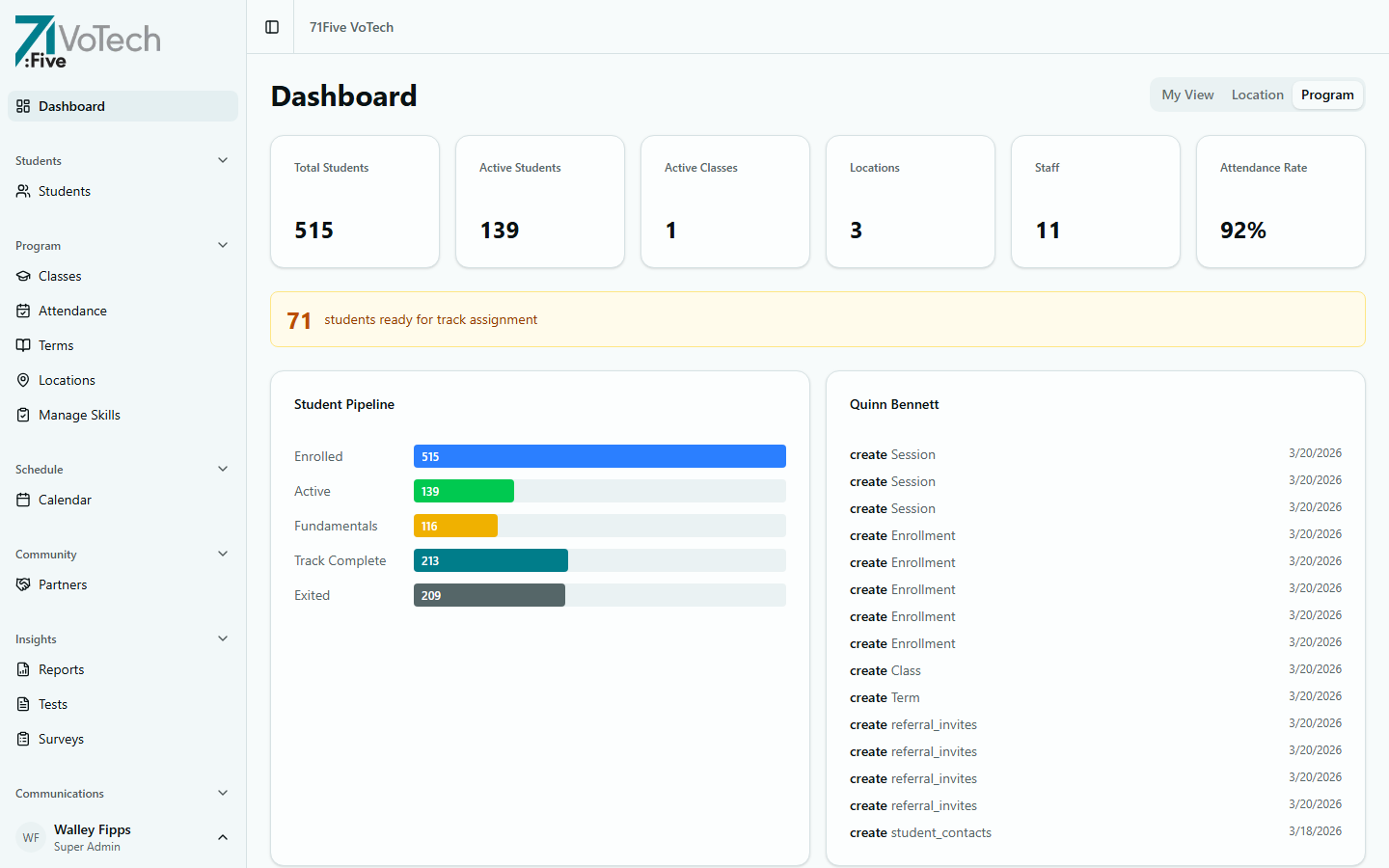
The org-wide view showing metrics across all locations:
- Total enrollment — all active students across the program
- Attendance rates — aggregated by location and category
- Grant metrics — key numbers for BOLI, YDD, and other grant reporting
- Location comparison — side-by-side view of Medford, Grants Pass, and Shady Cove
The Program tab is a great starting point before running detailed reports. It gives you the big picture at a glance.
👤 User Menu
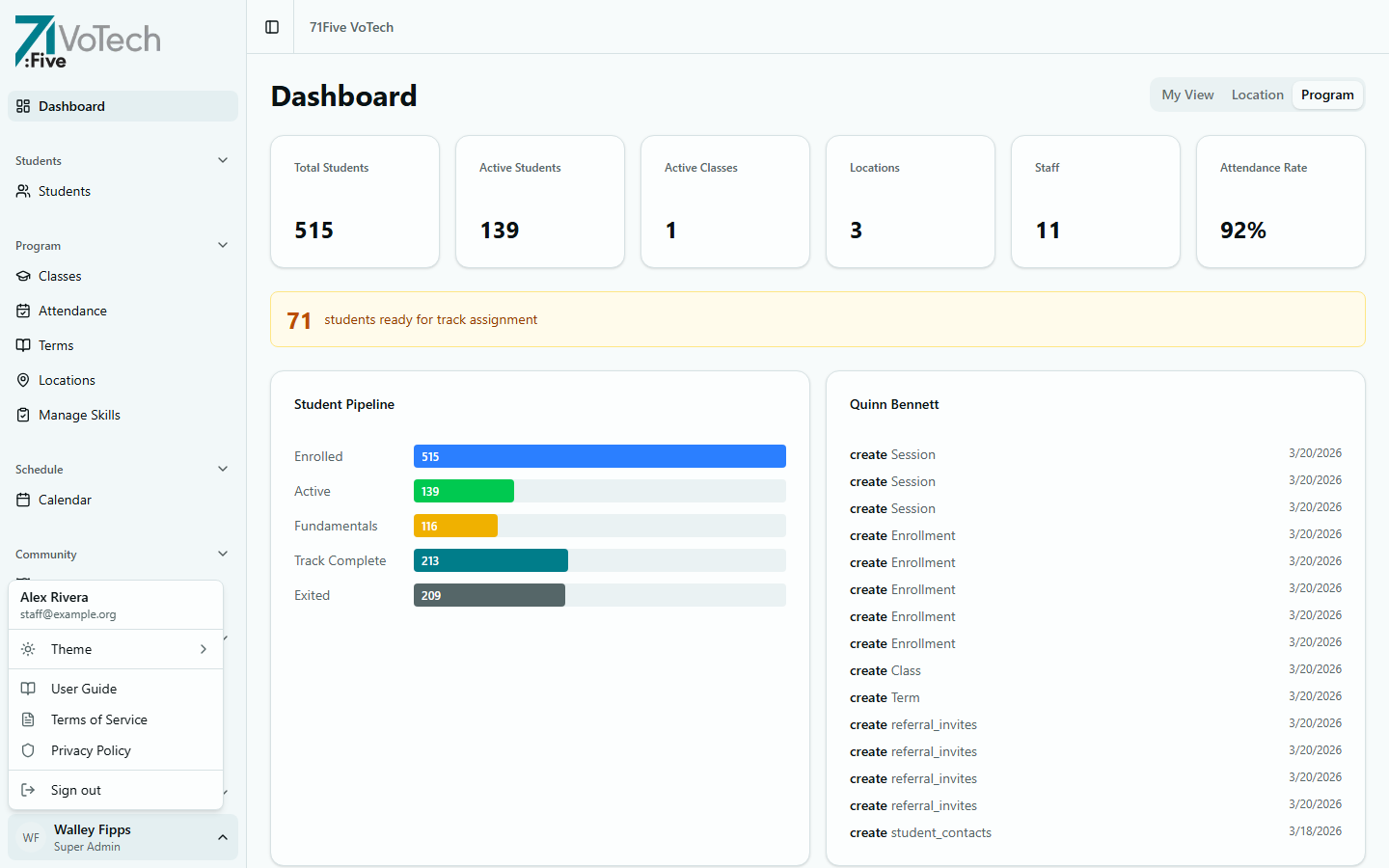
Click your avatar at the bottom of the sidebar to access the user menu. Your name and role are shown as a subtitle on the trigger button itself. The menu includes:
- Theme — switch between Light, Dark, and System theme
- User Guide — opens the VoTech documentation
- Terms of Service and Privacy Policy links
- Sign Out — end your session
The notification bell appears in the header bar (visible to Super Admin, Director, Case Manager, and Coordinator). It shows unread counts for enrollment, follow-up, survey, and session notifications. Click to view, mark read, mark all read, or click a notification to navigate to the relevant page.
🔐 What You See Depends on Your Role
| Tab | Super Admin | Director | Case Manager | Coordinator | Grant Writer | Volunteer |
|---|---|---|---|---|---|---|
| My View | Full | Full | Full | Full | Limited | Limited |
| Location | All locations | County | Your location | Your location | Multi-location | — |
| Program | Yes | Yes | No | No | No | No |
Super Admins and Directors default to the Location tab when they open the Dashboard. All other roles default to My View.